Create your first widget
Please note any selections made on the dashboard are highlighted using an "orange" box for clarity.
-
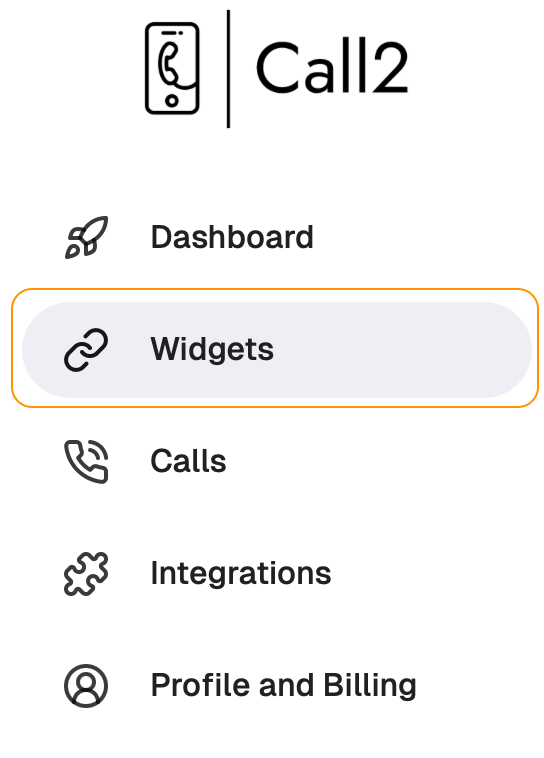
Creating your first widget is super easy - start by clicking on "Widgets" on the menu bar:
-
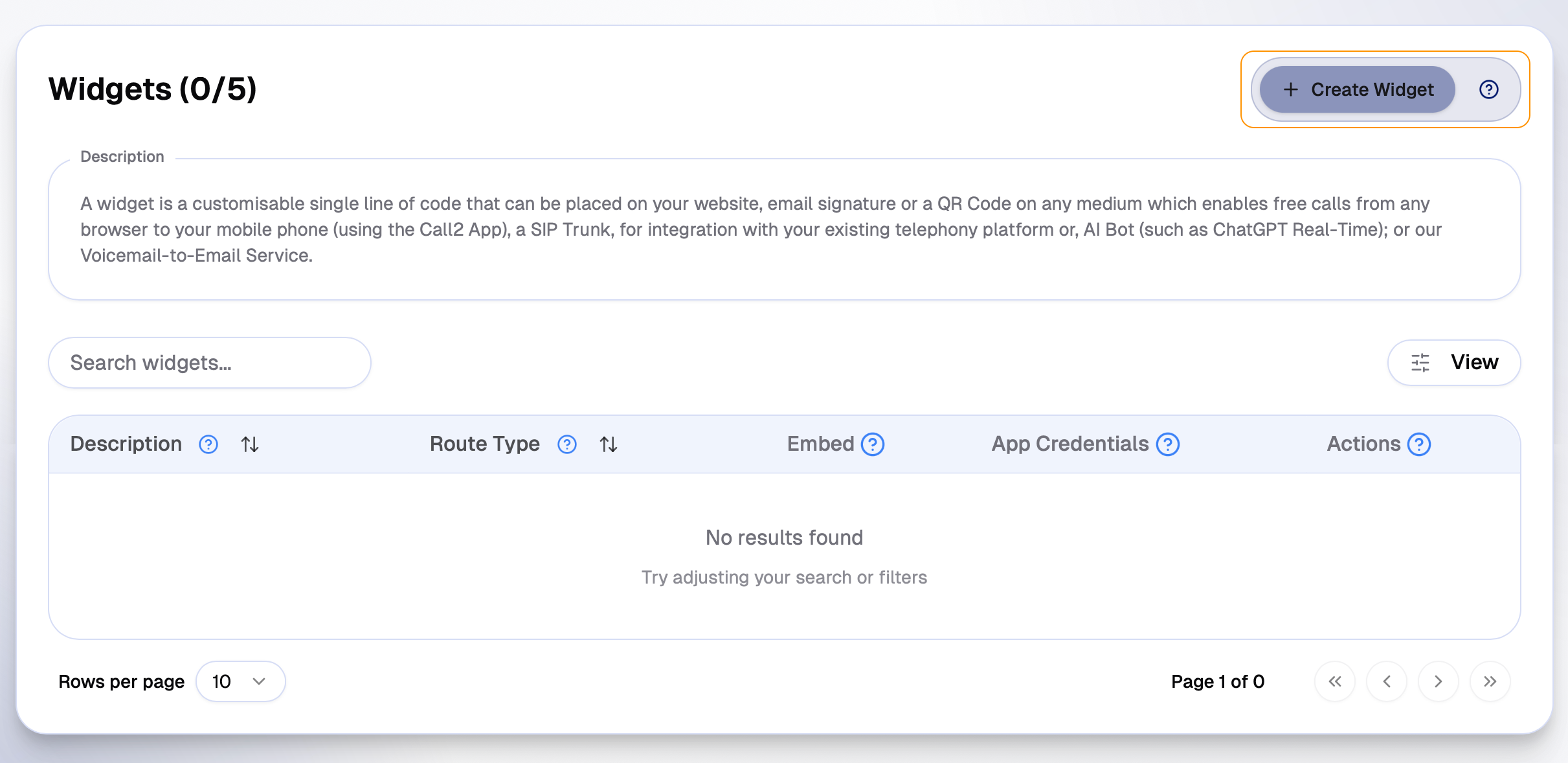
Then click "Create Widget" in the top right hand corner:
-
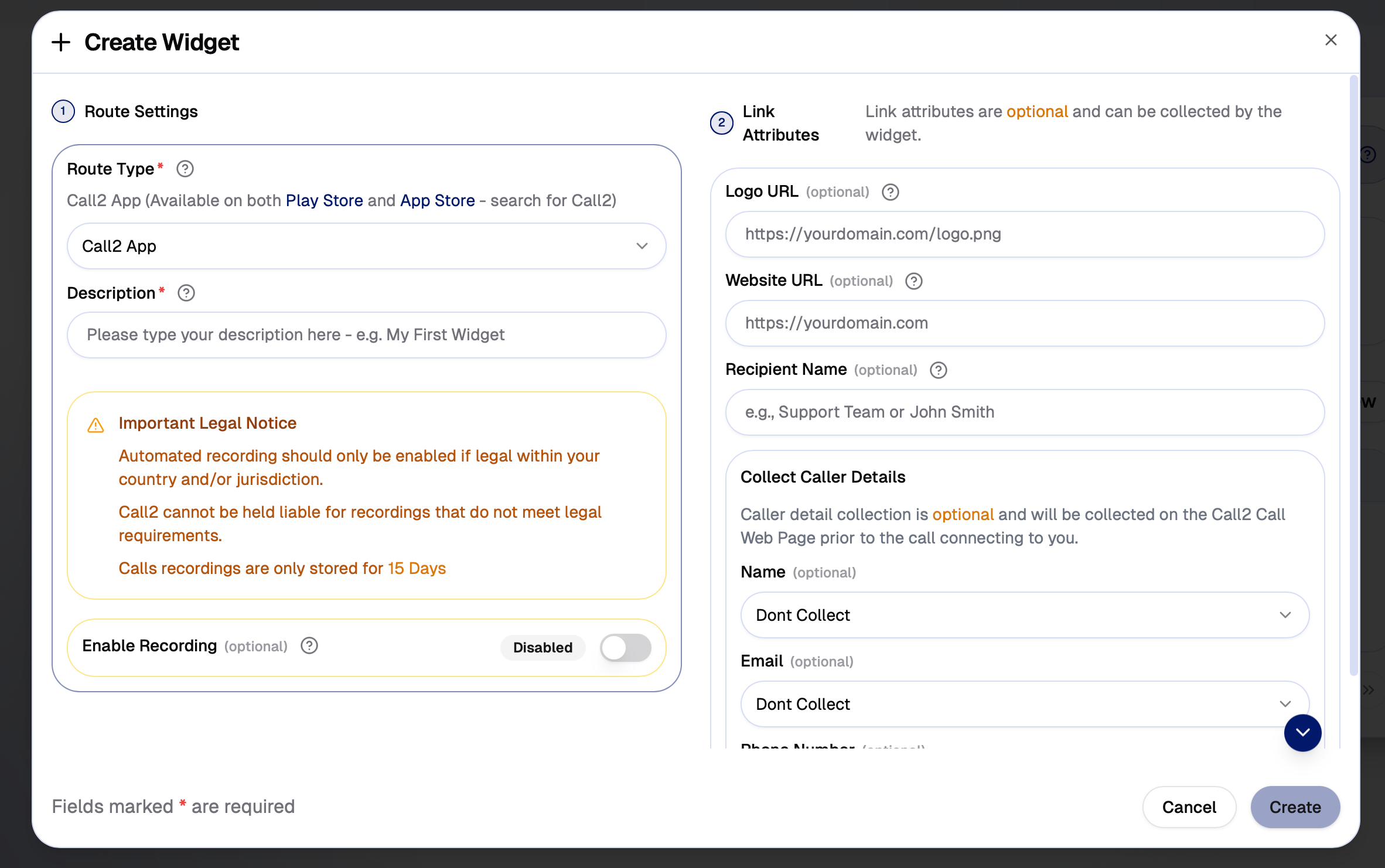
You will then be presented with the "Create Widget Modal":
-
Lets start by exploring the "Route Type":
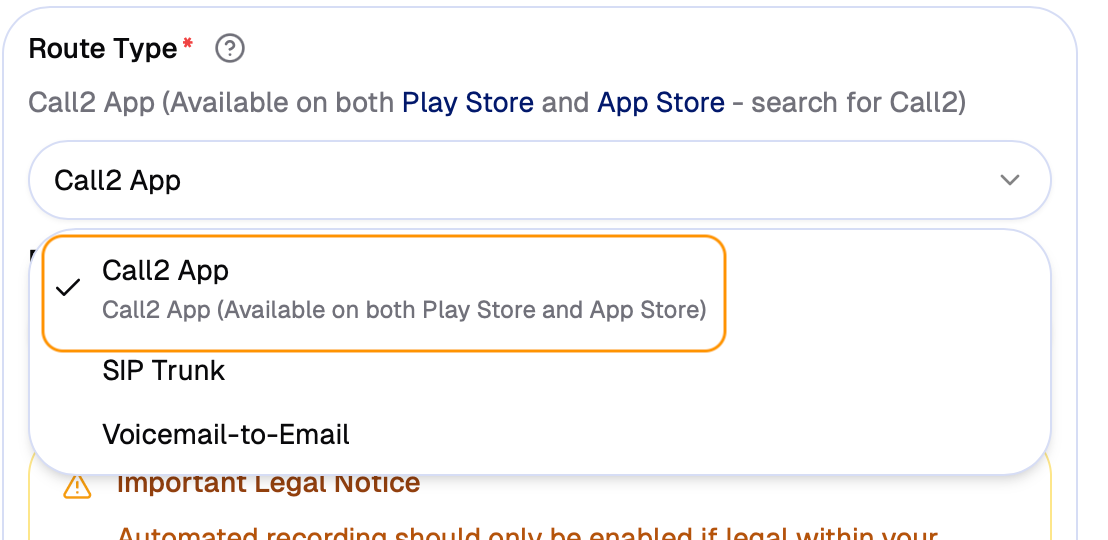
A route is where you would like the widget to send the call - this can be to your mobile phone (using the Call2 App), a SIP Trunk, AI Bot or our Voicemail-to-Email Service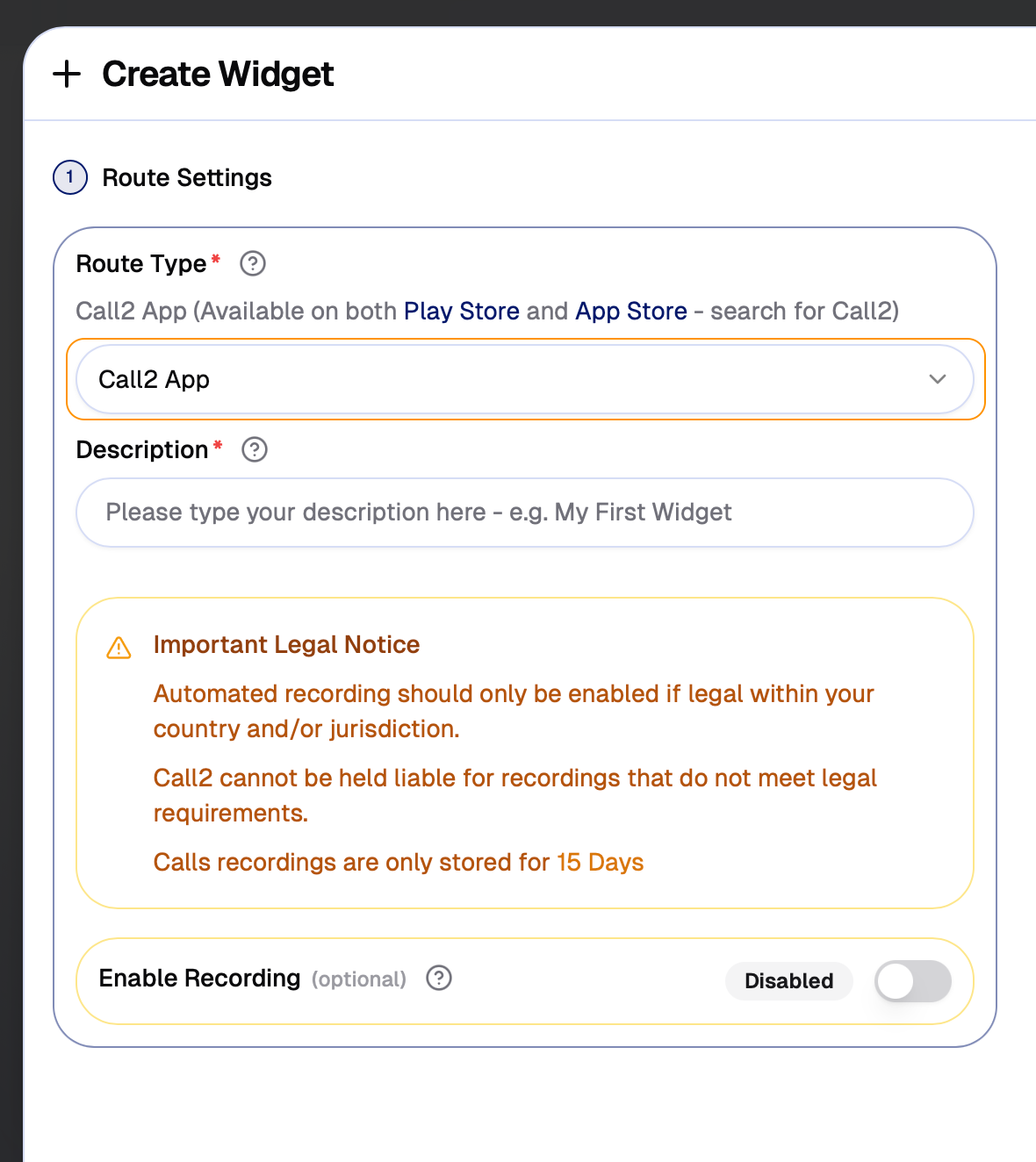
-
For this example we will keep the default "Call2 App":
-
Now we can give our Widget a "friendly description" - this description will appear on Call History so you know which widget was used when a call has been made:

-
Next, we will leave "Recording":
Enabling will record your incoming calls for this widget that are answered on the Call2 App. Recordings will be stored for 15 days. (Call Recordings are only available when the route type is a "Call2 App")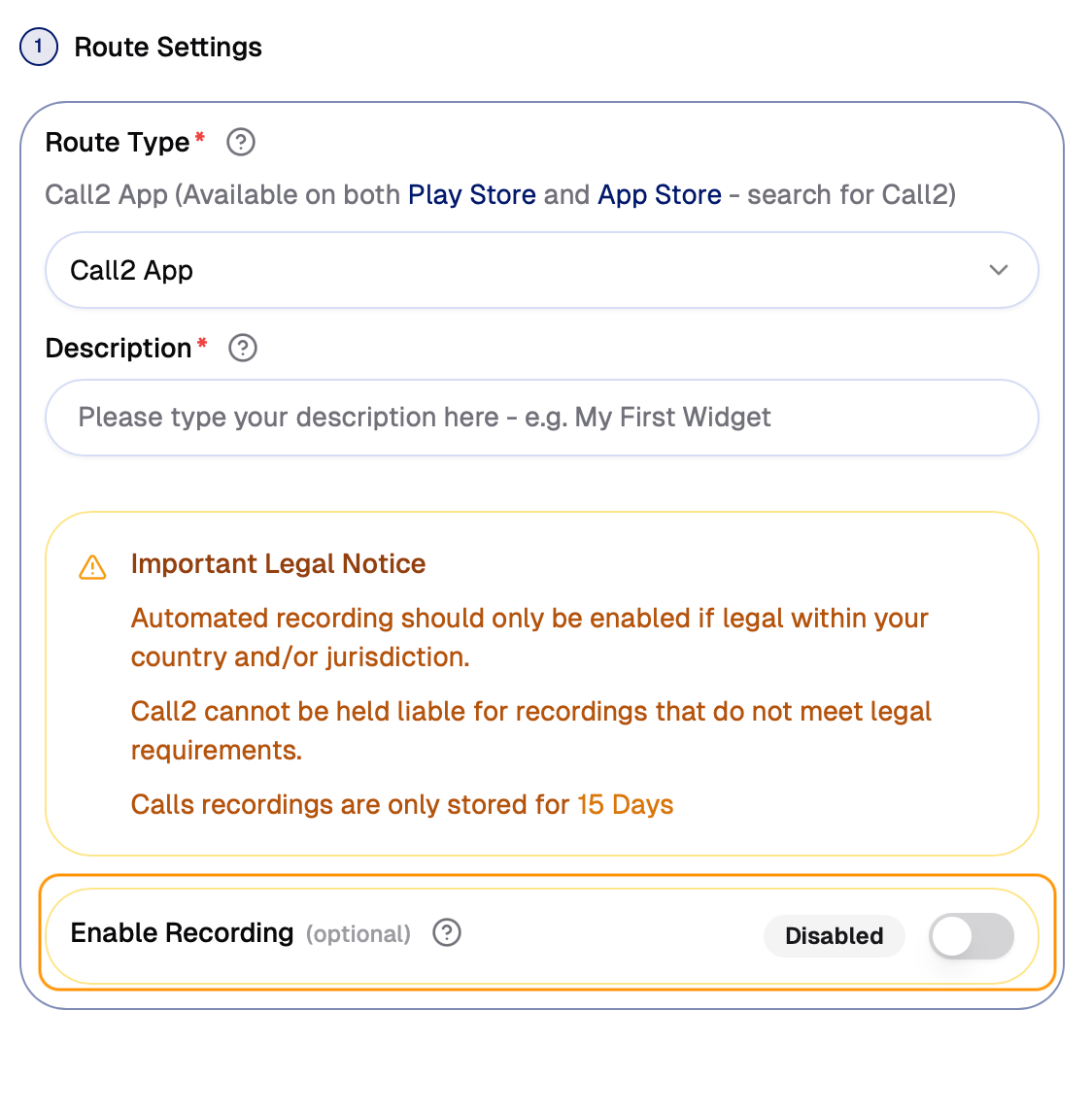 N.B. Please ensure you read and understand the legal notice regarding Recordings before enabling it for your widgets
-
Finally, we can cover "Link Attributes" - Link Attributes are optional settings that can 1. Change the way the call page looks, or 2. Alter the requirments for making a call - such as collecting callers names, email address and/or phone numbers:
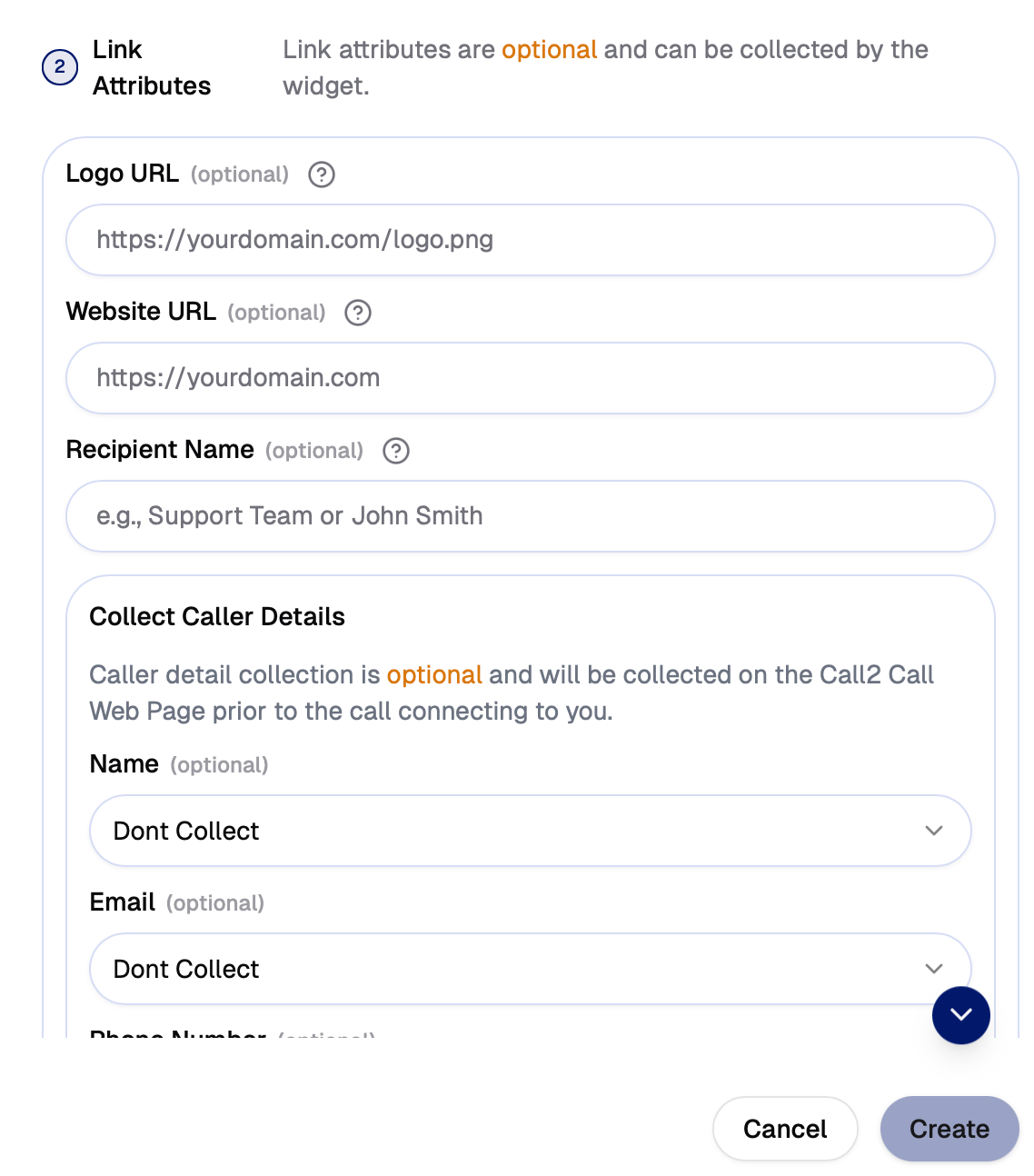 If you need further information on what each item does - please hover over the "?" next to the title on the dashboard, and it will give you further information.
-
Now all thats left is to create our widget and get our Call2 Code.
-
Our widget is now created and we need to get the code to either insert it onto our website, or share as a link - click on the "Get Code" button!

-
You will be presented with the "Website Widget Code", but we also provide you with "Direct Links" and "QR Code" which will both directly open up the call page for users to initiate a call.
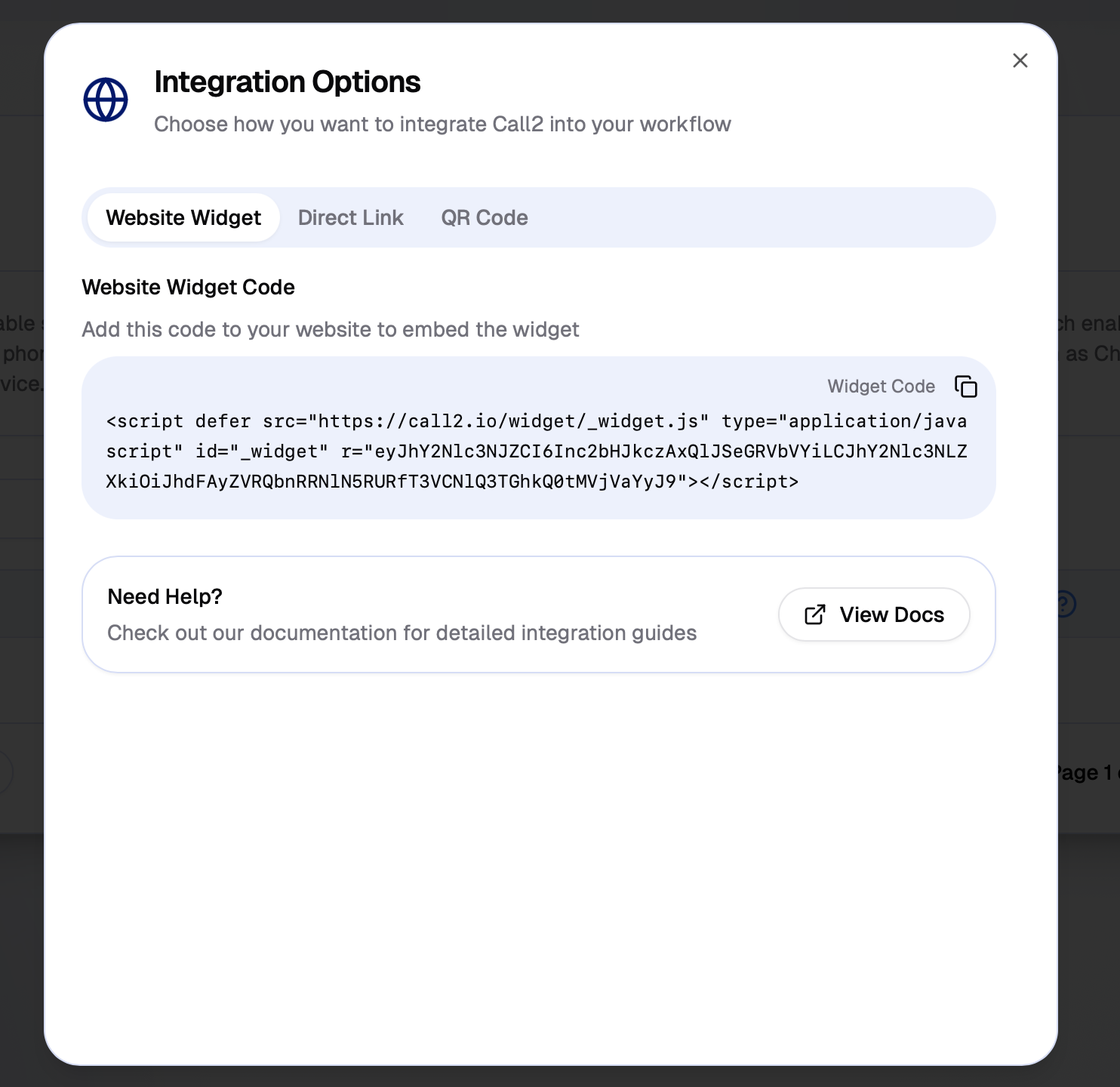
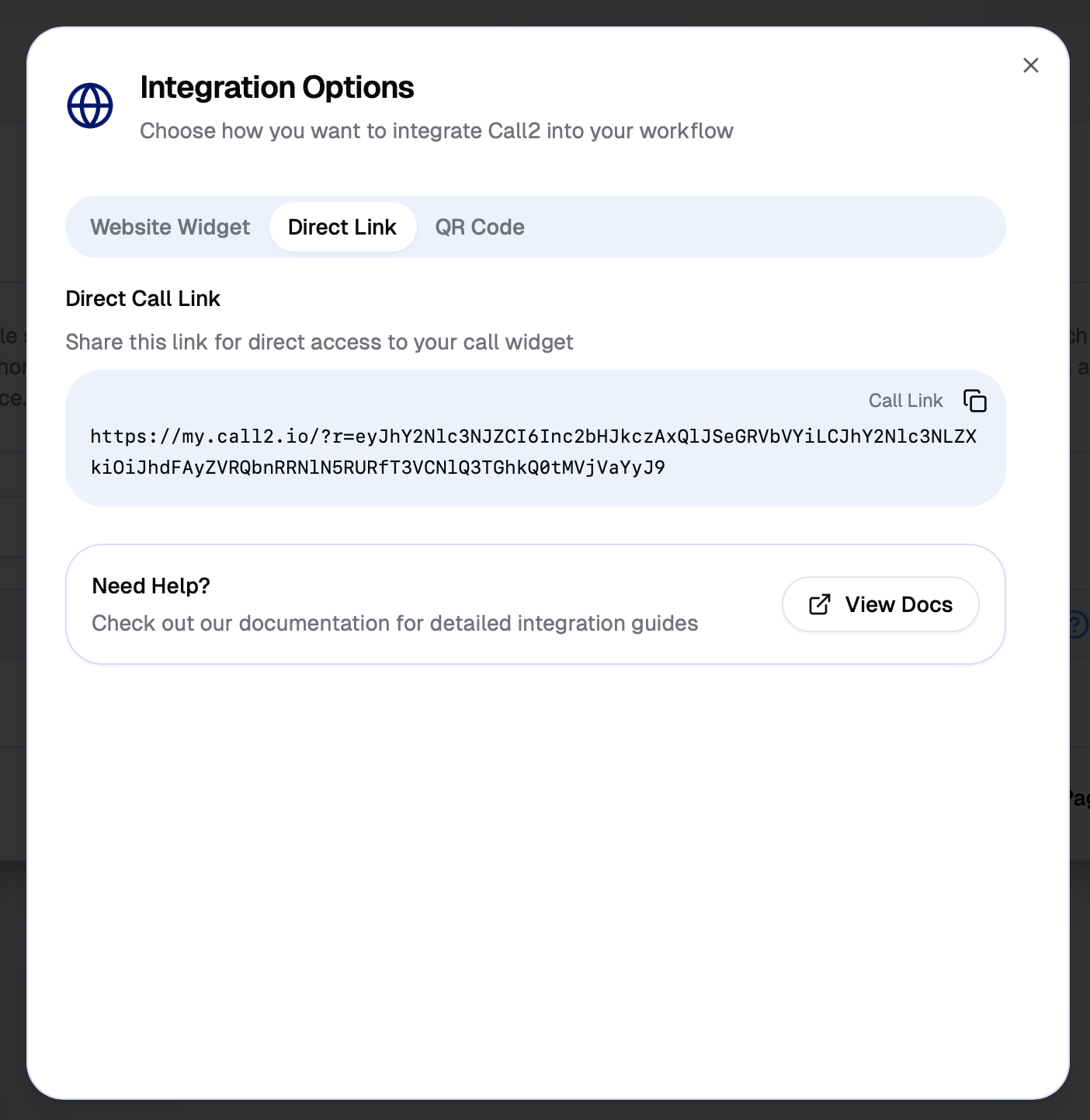
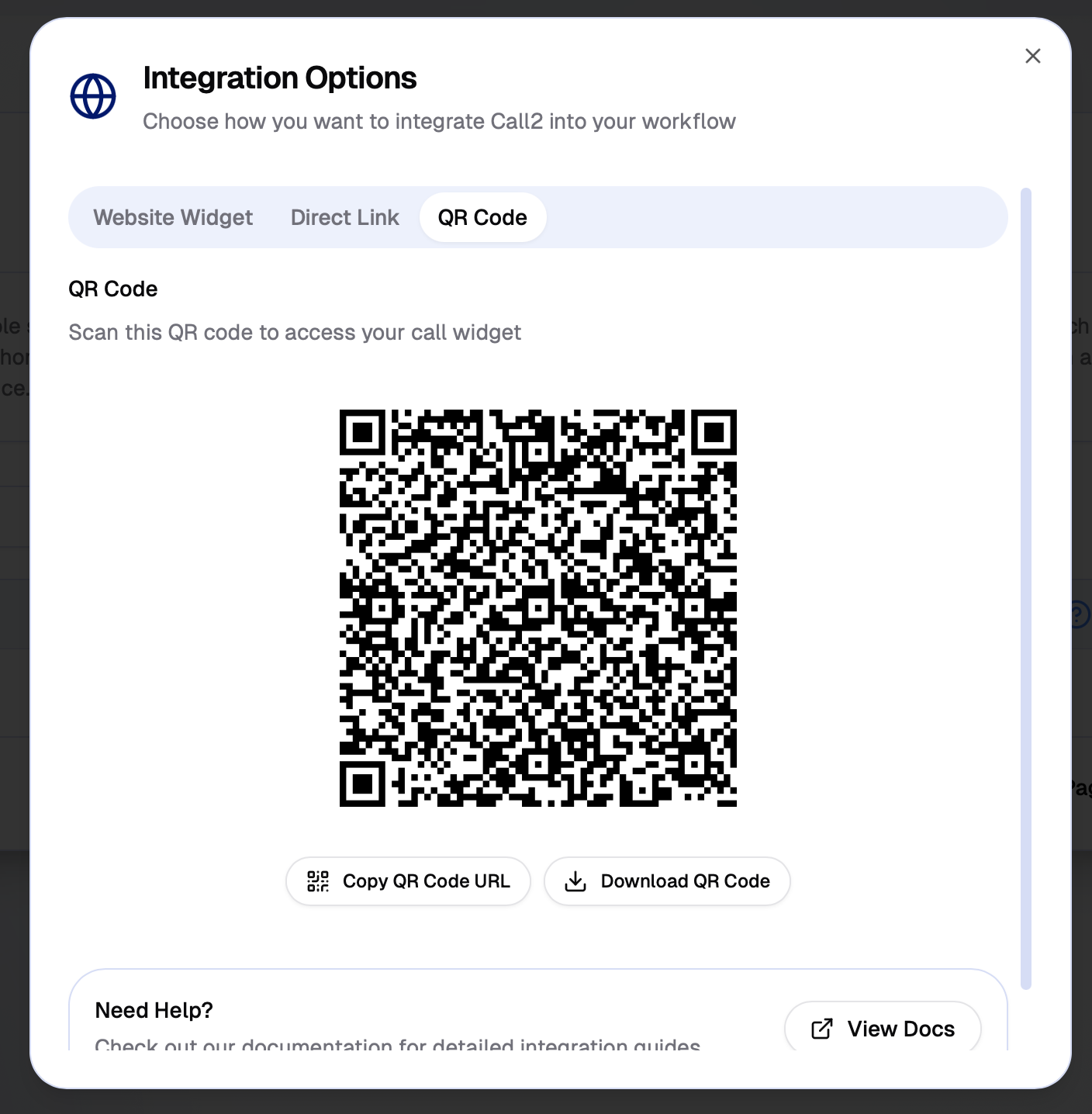
Awesome - you have successfully created your first widget. The next step is to put the "Website Widget Code" (Please contact/consult your IT or Website Resource to complete this step if you are unfamiliar) on your website or share the "Direct Link"
Next we will look at getting your Call2 App Credentials and logging in on your mobile phone Logging into the Call2 App